
Notice
This resource is not intended for a specific region. It is useful in a global setting.
Welcome to HerbSpeak. Ready to learn about a new online resource?
About Plants of the World Database
Plants of the World (also referred to in this resource as POWO) is an incredible global resource of plant taxonomic data, imagery, and information. It is one of the best referential databases for plant species globally, developed by the Royal Botanic Gardens, Kew. The database is a powerful engine for researching taxonomy, synonyms, finding detailed descriptions, authorities, images, and publications on specific genus and species.

In the navigation menu, there are helpful links that you can browse. The Data tab offers you the ability to download WCVP data, or build a checklist (More on this below). About provides more information about the resource, data, and organization. Help offers guidelines in citing your sources and a simple help guide to navigating the website.
Not covered in this resource are the additional scientific apps that Kew hosts, which you can access from the 9-dot grid icon on the lefthand side of the navigation bar. At the time of this writing, this includes a link to their ‘Our Science’ page which offers resources on work at Kew such as publications and the ability to search for a scientist. The sidebar menu features popular Kew science apps, including Plants of the World Online (which you are currently browsing), International Plant Names Index, Tree of Life Explorer, Medicinal Plant Names Services, Plant DNA C-values Database, and Tropical Important Plant Areas.
Searching the Database
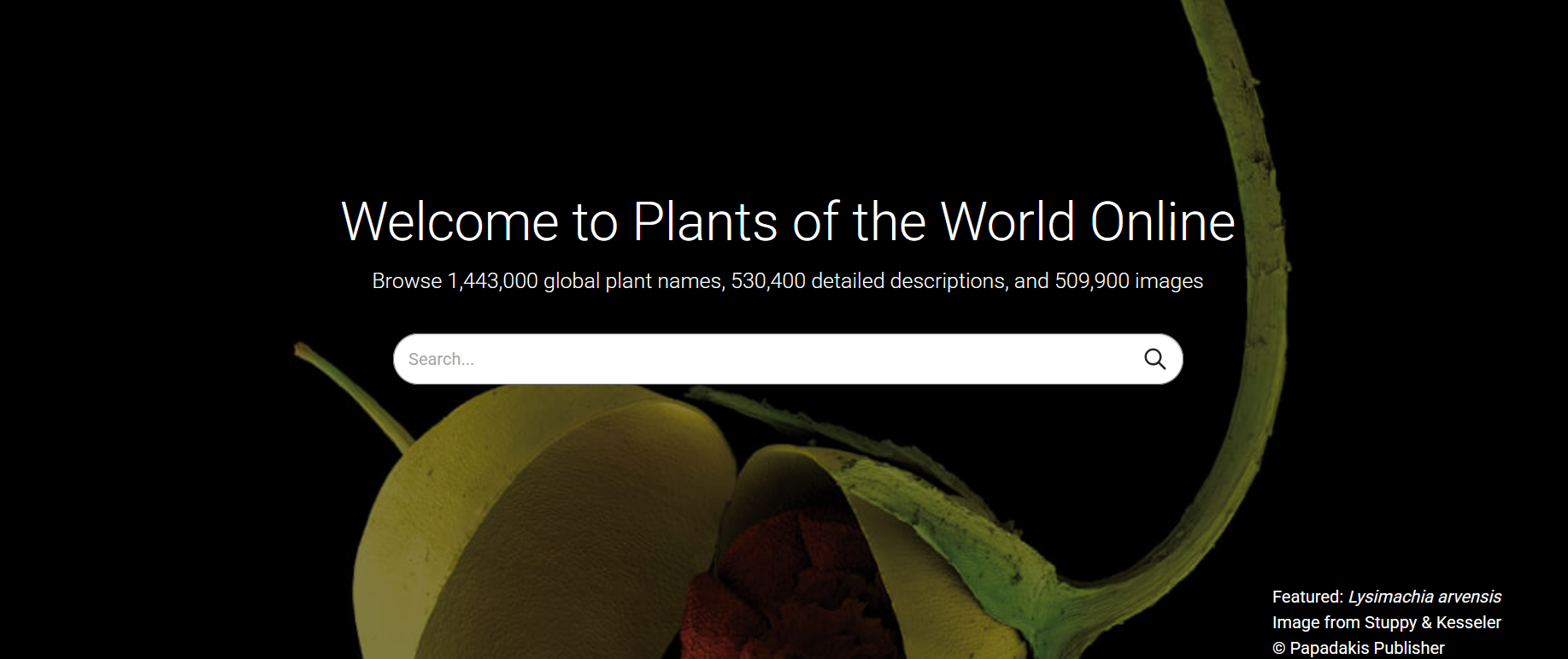
When you arrive at the homepage of the database, you’re greeted with a search bar. Below this, there are three featured plant species that update periodically. You can click on these featured plants, or search for a taxonomic rank of your choice in the search bar.
You can search for plant names, geographical locations, or adjectives of plant characteristics. Be advised that capitalization matters in your search queries.
While the system will automatically restrict your search based on its interpretation, you can also restrict your search manually. If you would like to make a specific search query, you can type the following terms:
- name:
- location:
- characteristic:
In the navigation menu, More > Help provides you with a full list of search queries that you can make.
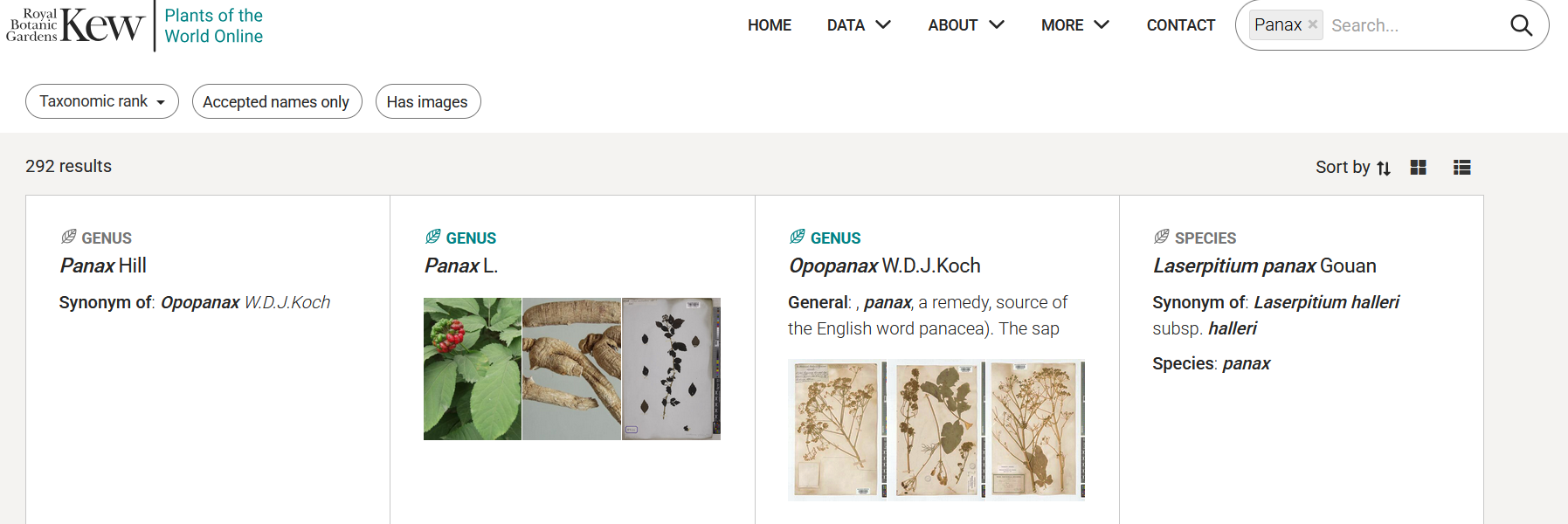
Once you make a search, you will be given a list of results. There are also filters available, allowing you to sort by specific taxonomic ranks, whether the result is an accepted name, or whether the result has images or not. The more broad your search, the more results will appear.
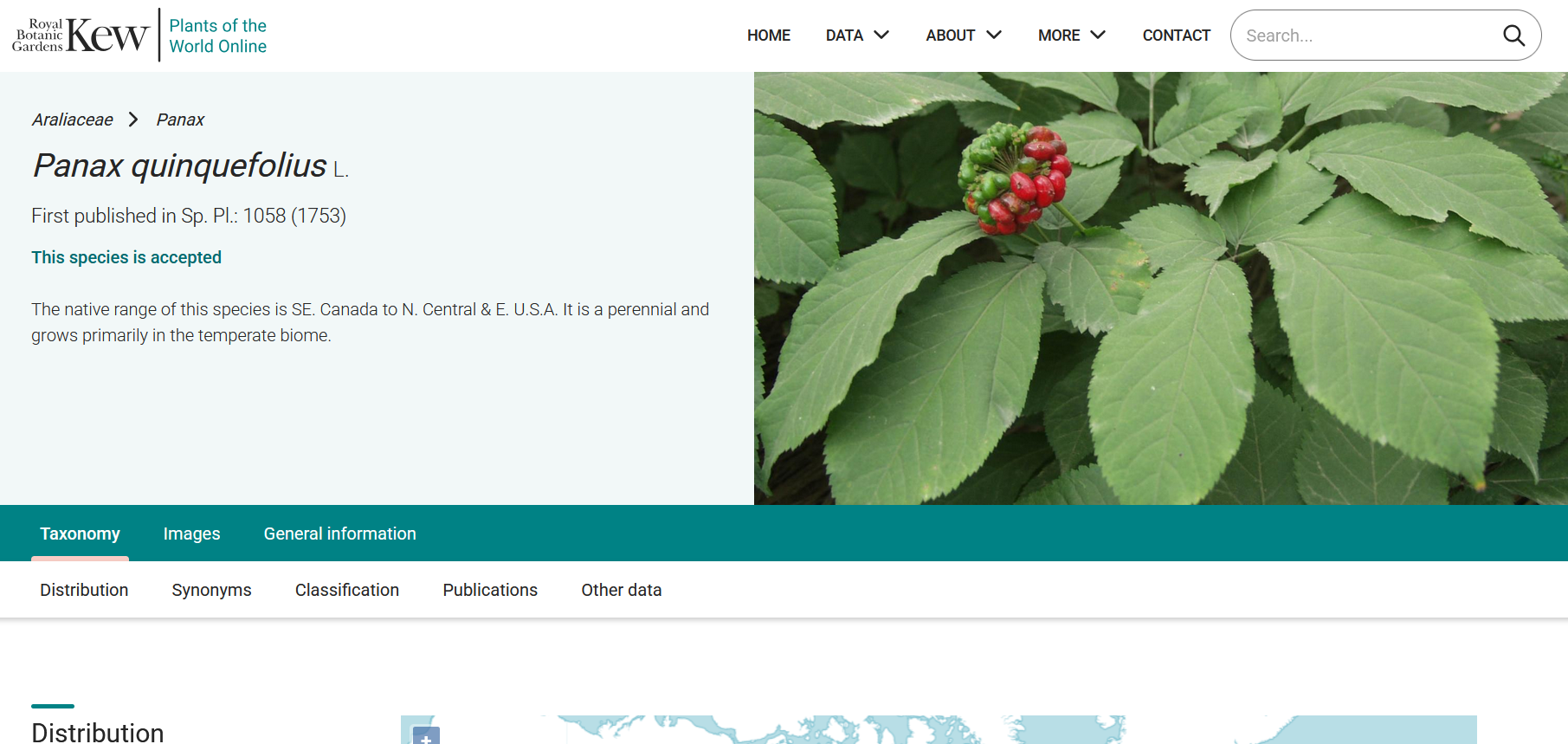
Once you select a result, you’ll be brought to the corresponding page with all the information about the plant that has been compiled and written by Kew. An overview appears at the top with some basic information about the plant and breadcrumbs of its taxonomic rank (which are clickable) and a featured image.
Below this, there is compiled information about the plant. The top navigation menu in blue are different tabs that you can navigate to, while the bottom white navigation menu shows you the different sections in that tab. You can click on these sections to jump to the respective section. Information in the Kew database is referenced, sourced, and linked for further reading if necessary.
Typically, more detailed descriptions will be available on individual plants rather than broader taxonomic pages such as family or genus.
Data: Build a Checklist
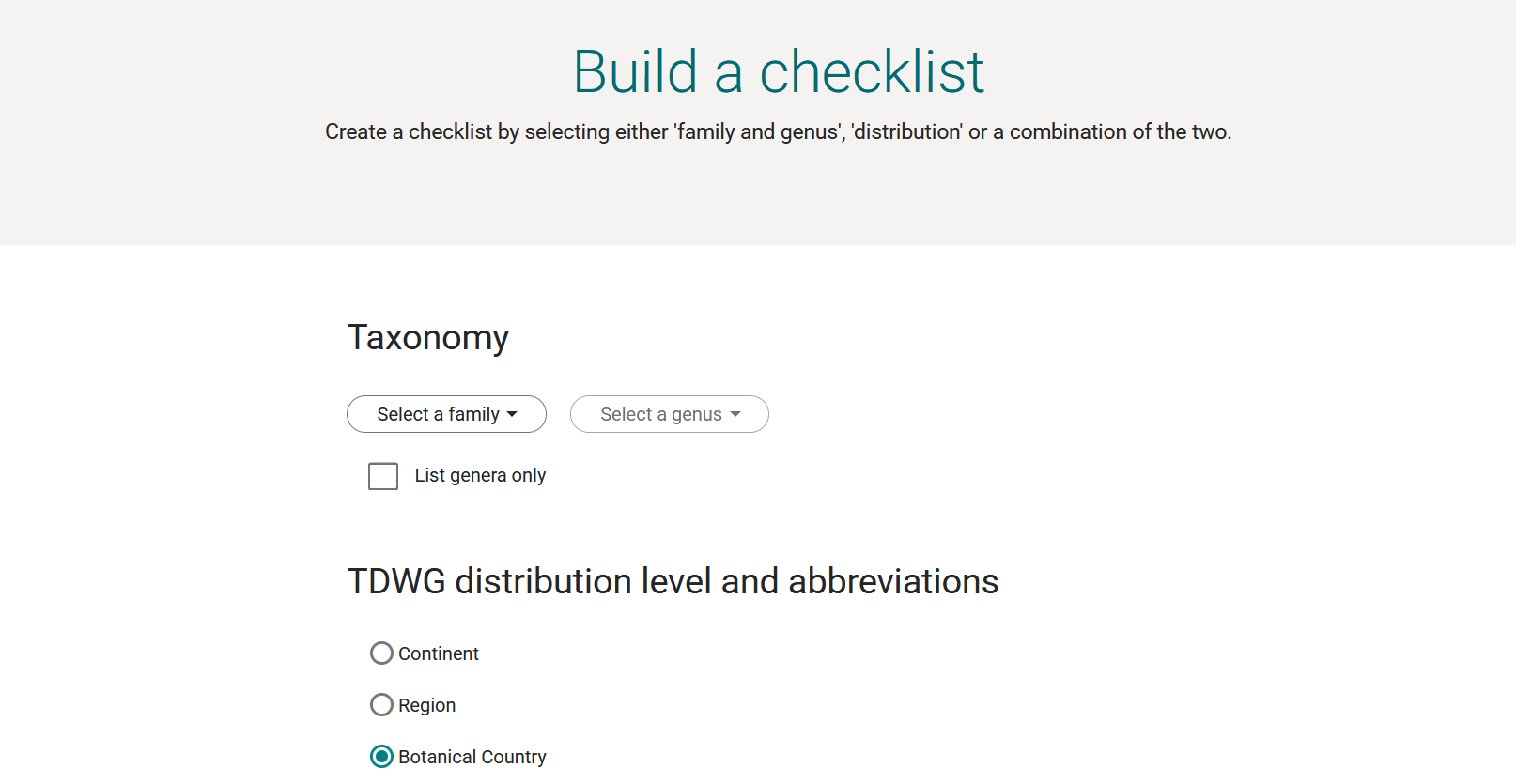
The Build a Checklist tool is one of the many incredible resources offered by Kew. There are a range of options to help you customize the checklist to your needs based on the Plants of the World database.
There are many filtering options available starting with Taxonomy where you can select a family and genus, and/or list genera only.
TDWG Distribution Level and Abbreviations allows you to select from applicable locations, and filter by either Continent, Region, or Botanical Country. TDWG is the formerly-known-as Taxonomic Databases Working Group, now known as Biodiversity Information Standards, and is an international set of standards for recording and exchanging biodiversity data. In this case, it allows you to filter and select the geographical schemes you want to use in your checklist.
You can also select for Type of Taxa, from Native and Introduced taxa, to Endemic taxa only, Native taxa only, and Introduced taxa only.
Finally, before creating a checklist, you can select a Checklist Format. You can choose a summary checklist either formatted by names listed by taxonomic status, or alphabetically. You can choose an Unplaced Names format, which generates a list of unplaced names, or you can choose a detailed checklist formatted as a synonymised checklist at standard or alphabetically.
In generating checklists, there is currently a limit of 10,000 accepted names. If you intend to create a checklist that might exceed this limit, it’s best to break it down into multiple checklists using the filtering options available to you.
It is also worth noting that there are no easy export buttons available once you generate a checklist. While it is possible to take the HTML page format and paste it into an excel sheet, for instance, it will require some adjustments to get it into the format you need it in.
Data: Download WCVP Data
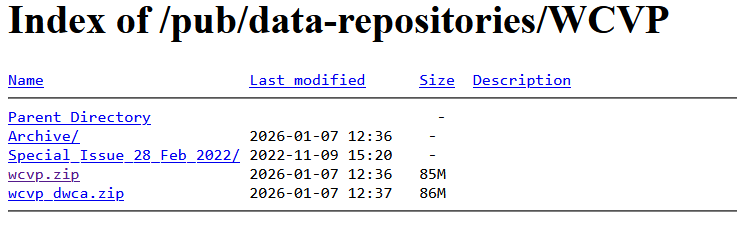
Kew allows the download of World Checklist of Vasculate Plants (WCVP) and Darwin Core Archive data (DWCA) that they have compiled.
From the Data tab, if you select the “Download WCVP Data”, you’re taken to an SFTP page (an external link) which stands for SSH File Transfer Protocol. This is an easy way to download files directly with encryption protection. From there, you can download the data that you choose, and select the back arrow to return to the previous page. Navigating this page is fairly straight forward; at the time of this writing, there are three files available at the primary page. One is the wcvp.zip, the second a special issue file, and the third a wcvp_dwca.zip file.
You can also browse the archive, which is available in the repository. Alternatively, you can select the Parent Directory option, which backs up one repository level from where you are – essentially a “back” button for these pages.
Depending on the file that you download, there may be a readme file attached. Readme files are important to read whenever you download large datasets like this. In the wcvp.zip file, the readme includes all the metadata information and additional notes, including instructions for loading the data into R.
0 Comments